How to Fix Your Steam Privacy Settings for Backlog Shuffle
Backlog Shuffle needs access to your Steam game library to work. If your Steam profile is set to Private, we can’t read your library and the shuffle feature will be disabled.
Follow the steps below to make your game details public, then re-sync your library in Backlog Shuffle.
Step 1 — Open Your Steam Privacy Settings
Open the Steam desktop client or go to store.steampowered.com.
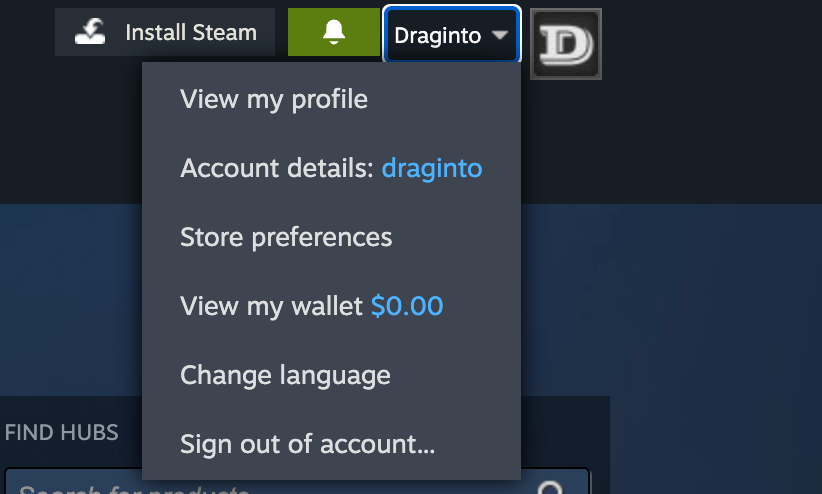
- Click your username in the top-right corner.
- Select Profile from the dropdown.
Step 2 — Go to Edit Profile
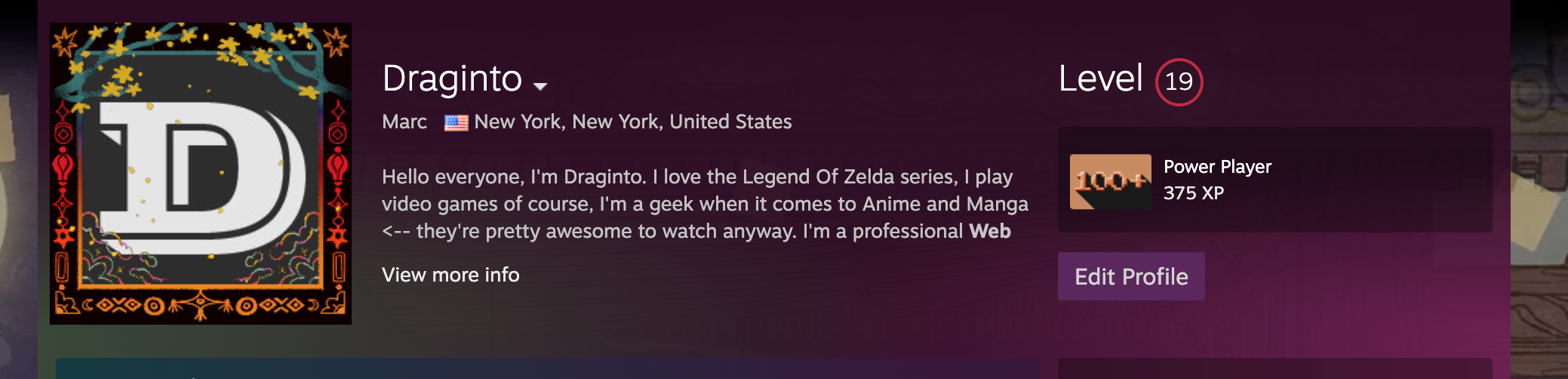
On your profile page, click the Edit Profile button (located below your avatar and username).
Step 3 — Open the Privacy Settings Tab
In the Edit Profile view, look for the Privacy Settings tab in the left sidebar or at the top of the form.
Step 4 — Change “Game Details” to Public
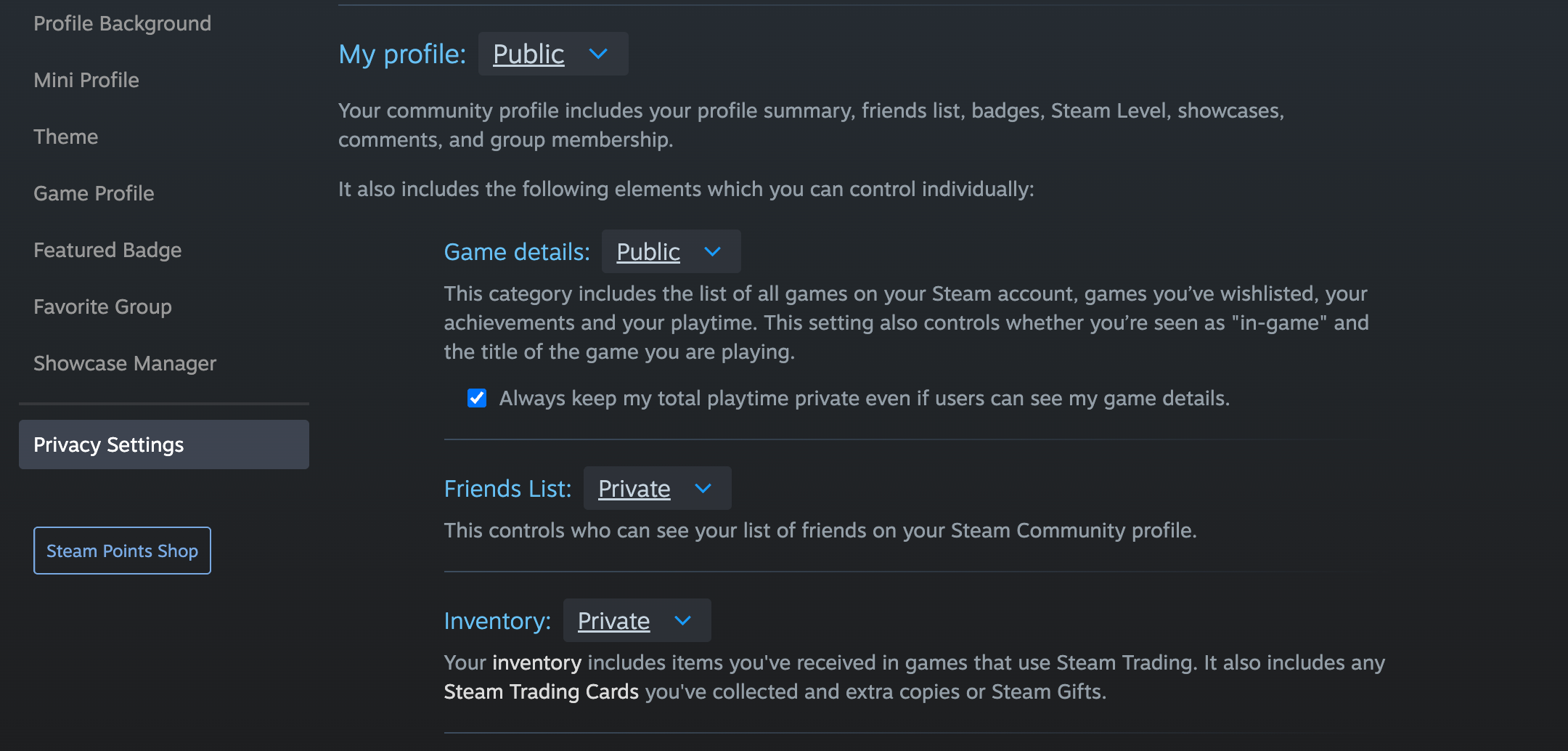
Under the Privacy Settings section you will see several visibility controls. Find the Game details row (sometimes labelled My profile) and change its value from Private to Public.
Note: Only Game details needs to be Public for Backlog Shuffle to work. Your other privacy settings (Inventory, Friends list, etc.) can remain as-is.
Step 5 — Save Your Changes
Click the Save button at the bottom of the Privacy Settings form. Steam will confirm that your settings have been updated.
Step 6 — Sync Your Library in Backlog Shuffle
- Return to Backlog Shuffle.
- Click the Sync Library button (found in the navigation bar or settings area).
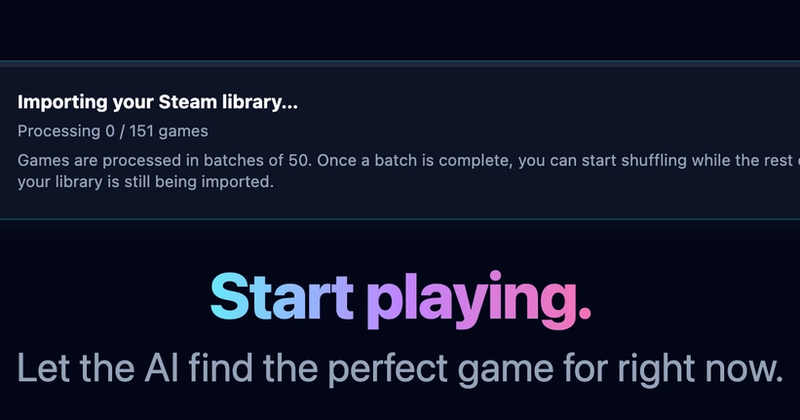
- Wait a moment while your games are imported — you’ll see a progress banner at the top.
- Once the sync completes, the privacy warning will disappear and you can start shuffling! 🎮
Quick Links
- Steam Privacy Settings — jump straight to the settings page
- Steam Help: Profile Privacy — official Steam documentation
- Backlog Shuffle Dashboard — return to shuffle after fixing your settings